

Outcome-based assessment made simple, respectful, and human.
In a world where AI can generate perfect essays and instant answers, meaningful evaluation depends on human insight. GradIn gives teachers a new way to assess learning — through outcomes, criteria, and evidence that reveal authentic progress. Move beyond grades. Measure growth. Keep the conversation at the heart of learning.
In English, "GradIng" means evaluating. In French 🇫🇷, "GradIn" sounds almost the same, but it means the place from which we watch (tiered seating).
That small shift changes everything.
GradIn is not about putting teachers in the spotlight — it’s about giving them space — to observe, to listen, to encourage, and to guide students as they learn and grow.
Your data belongs to you. Everything stays on your device and your personal iCloud (if enabled) — never on our servers (I don’t even have any), never shared.
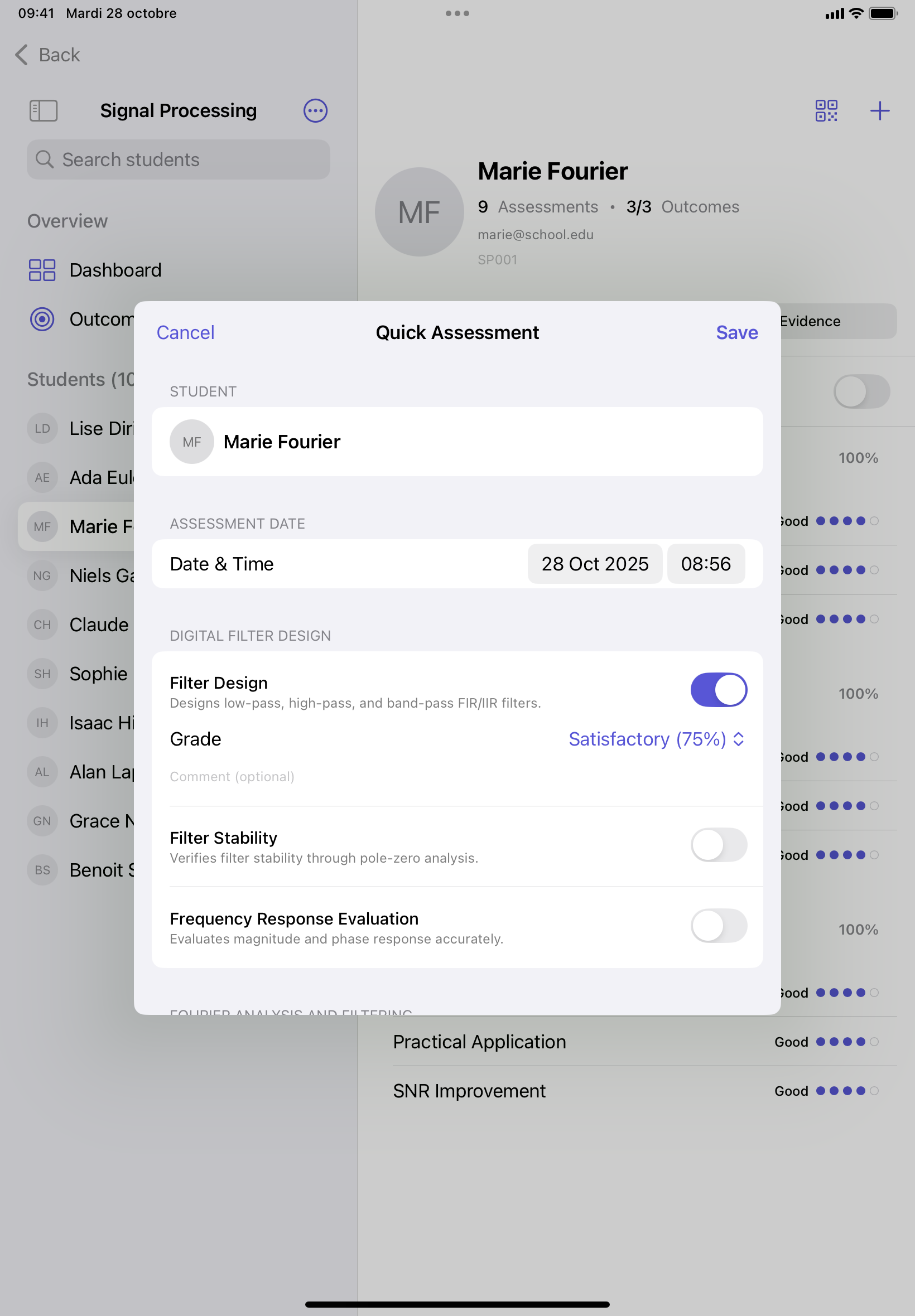
Evaluate multiple criteria in seconds with intuitive sliders and visual grading. Add comments and track each student's progress over time.
Define learning outcomes, set mastery thresholds, and let GradIn automatically validate progress with clear visual indicators.
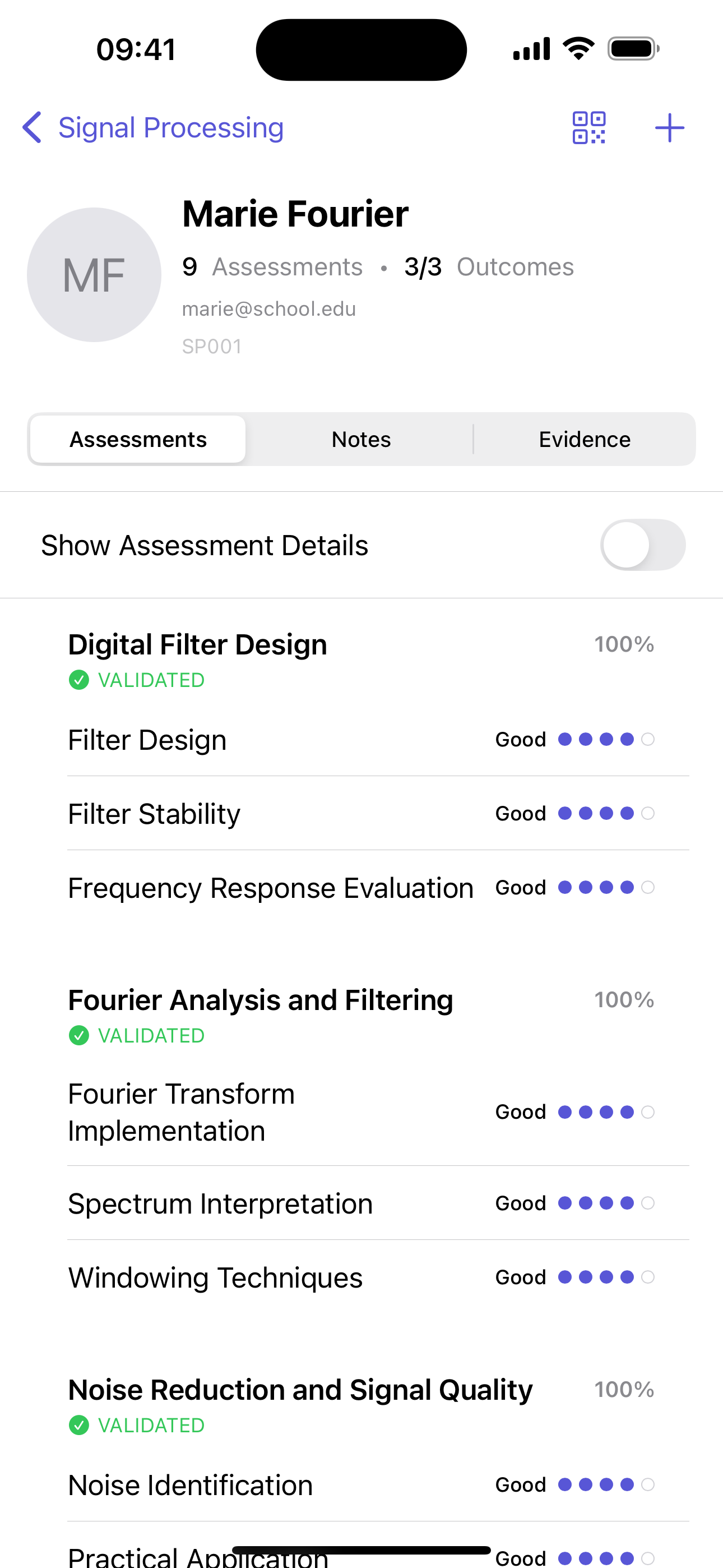
Each student gets a clear profile — photo, history, and progress visualization per outcome — all available at a glance.
See the bigger picture with min/max/mean statistics, class-wide performance summaries, and color-coded insights.
Import or export CSV files easily, keep local backups, and sync via iCloud if you wish. No hidden cloud, no lock-in — full control is yours.
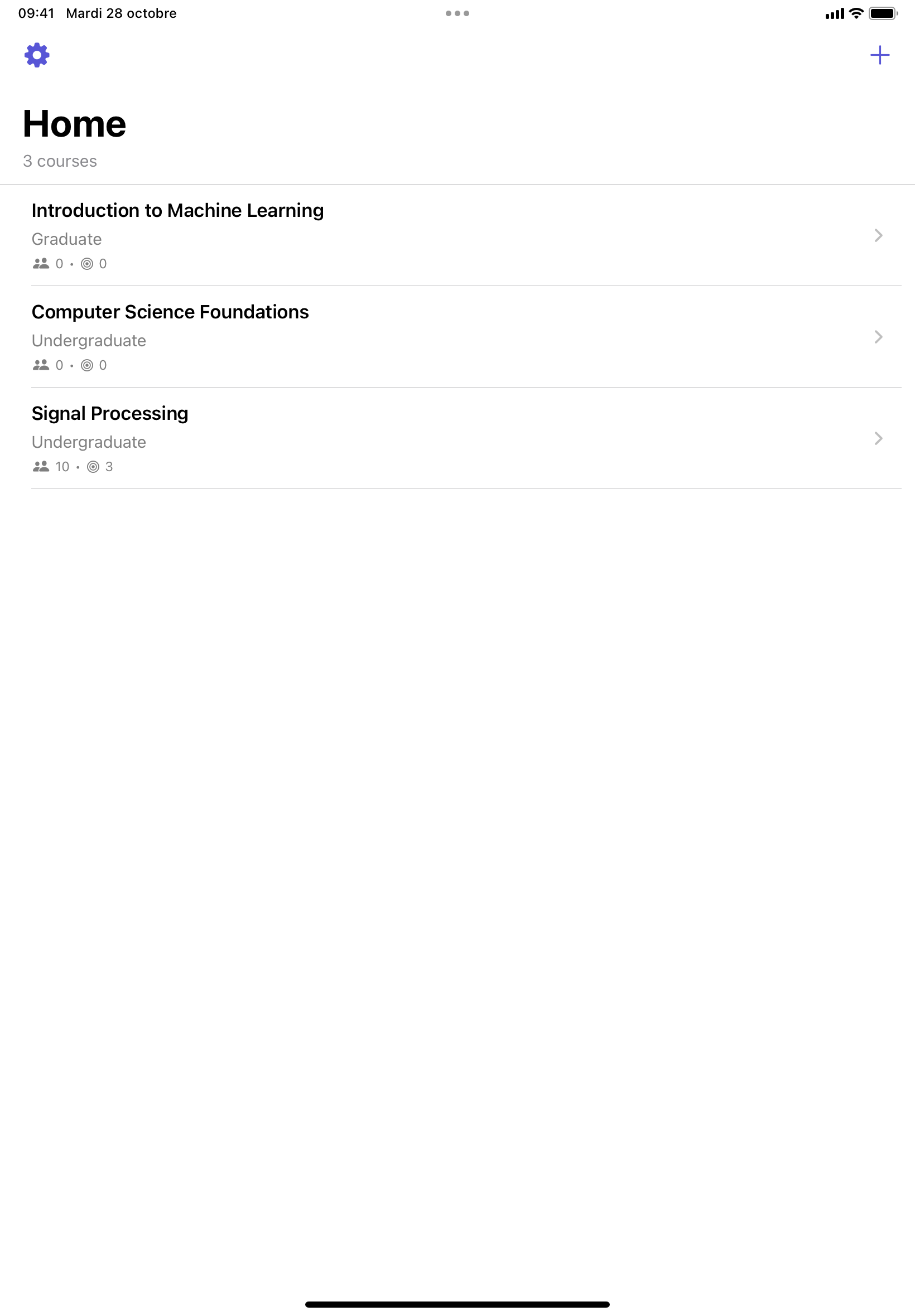
Tap the "+" button on the main screen to create a new course. Enter the course name, level, and start date.
Navigate to the Outcomes tab and tap "+" to create outcomes. Each outcome can have multiple criteria for assessment. Set a validation threshold (e.g., 75%) to determine when students have mastered the outcome. You can also directly load (or export) a JSON file describing your course structure (ex: signal_processing_course.json)
In the Students tab, tap "+" to add students individually, or use "Bulk Import" to import multiple students from a CSV file. You can optionally add student photos for easy identification.
Select a student, then tap "Quick Assessment". Choose an outcome and grade multiple criteria at once. Each grade level has a corresponding percentage (e.g., Satisfactory = 75%, Good = 100%).
View individual student progress in their detail page. Green checkmarks indicate validated outcomes, while red X's show outcomes not yet achieved. The Dashboard tab provides class-wide analytics.
Export your grades to CSV format for reports or external grade books. The export includes validation status and best assessment percentages for each criterion.
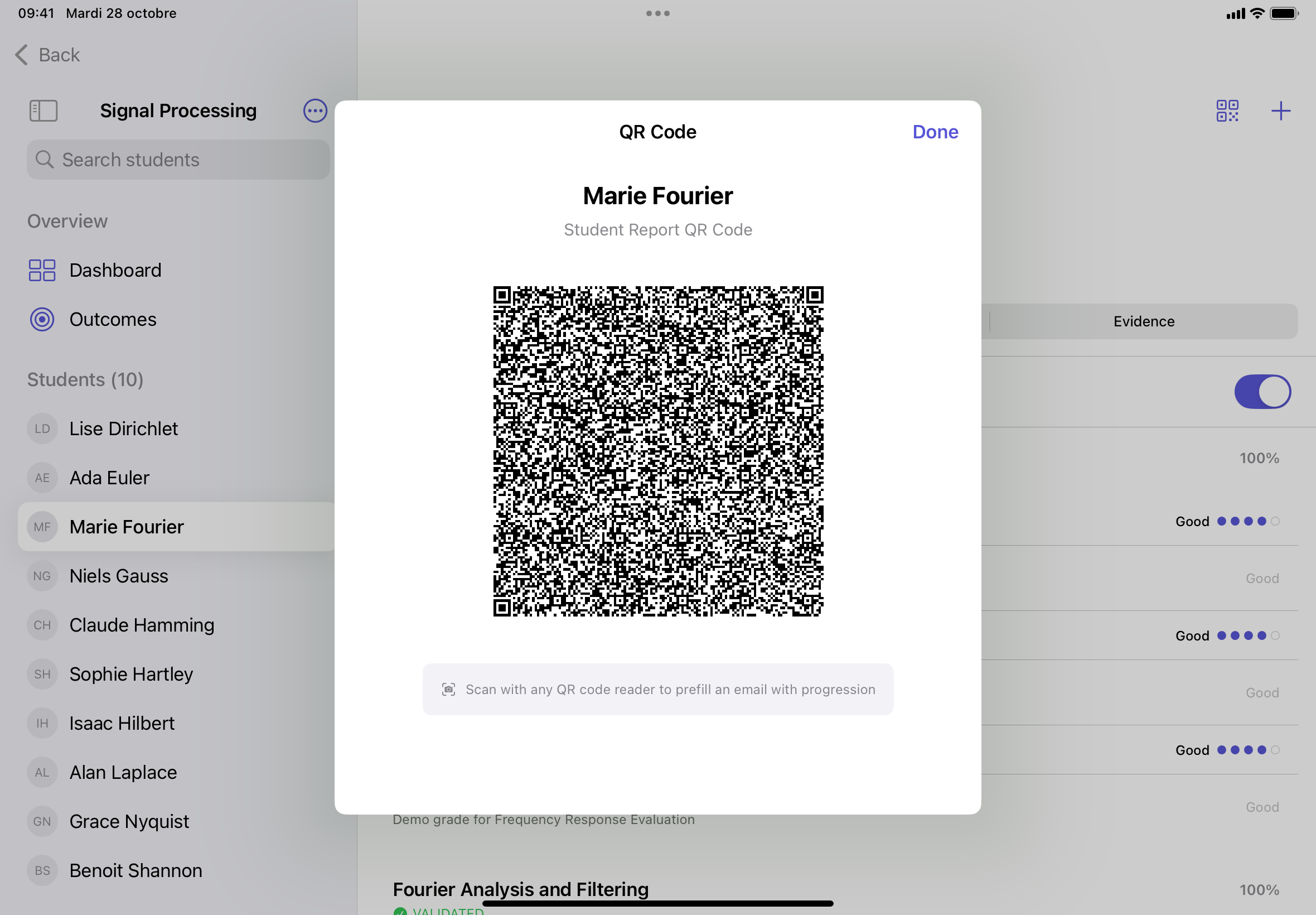
Show QR code to students so they can instantly receive their personalized progress report by email — no accounts or cloud needed.

Gradin isn’t a platform. It’s a simple tool built by a teacher, for teachers.
It costs the price of a coffee — €3.99, lifetime license. No subscriptions. No tracking. No servers.
When you buy the app, you’re not paying a company.
You’re simply offering me a coffee so I can keep improving Gradin and supporting teachers worldwide.
Because good teaching deserves good tools — and a good cup of coffee ☕
I'm Vincent Choqueuse, an Associate Professor in Signal Processing and a teacher passionate about helping students grow. Over the years, I’ve spent countless hours designing lessons, supervising projects, and evaluating students — often using tools that felt too heavy, too rigid, or too impersonal.
I built GradIn because I wanted something different — a simple, elegant way to observe and encourage students without losing the human connection. No noise, no distractions — just a clear space where teaching and learning meet naturally.
— a tool built by a teacher, for teachers, designed with care in Brittany 🌊. —

I'm here to help you make the most of GradIn.
Perfect for:
K-12 teachers • University instructors • Training coordinators • Any educator using standards-based or outcome-based GradIng